How to organise recipes digitally
Turn scattered screenshots, links, notes, and cookbook photos into a recipe library you can actually use.
Organising recipes digitally works best when your saved meals are not just stored, but searchable, editable, and connected to the way you plan food. This guide shows how to build a useful digital recipe system around the real Cenaplan workflow: import recipes, clean them up, tag them, find them quickly, and send them into your weekly plan.
Capture recipes from real life
Bring in recipes from photos, screenshots, camera captures, website links, and manual edits.
Make recipes easy to find
Use names, ingredients, favourites, tags, and meal categories so the right recipe appears when you need it.
Connect recipes to planning
A useful recipe library should feed your weekly planner and shopping list, not sit apart from them.
Continue Building Your Recipe System
These pages explain how Cenaplan turns organised recipes into practical weekly planning.
Why digital recipe organisation usually fails
Most people do not have a recipe problem. They have a retrieval problem.
The recipe itself is somewhere: a screenshot in a camera roll, a bookmarked website, a handwritten card, a note from a friend, a cookbook photo, a saved social post, or a half-remembered dinner you made last month. The problem appears later, usually at the worst possible time. You are trying to plan the week, use food already in the fridge, or answer "what are we having tonight?", and the recipe collection that felt useful when you saved it suddenly feels impossible to search.
A good digital recipe system needs to do more than store recipes. It needs to help you capture recipes quickly, tidy them enough to reuse, find them by the way you actually cook, and move them into a plan when you are ready.
Cenaplan is built around that full loop. The digital recipe binder is the collection point, the food planning app turns saved recipes into a week, and the shopping list gathers the ingredients from the meals you choose.
Start with one place for every recipe
The first rule is simple: reduce the number of places a recipe can hide.
That does not mean every recipe has to arrive in the same format. A real household recipe library is messy. Some recipes come from websites. Some are photos of cookbook pages. Some are screenshots. Some are typed from memory. Some are generated or adapted from an assistant conversation.
The important thing is that they end up in one searchable recipe binder.
In Cenaplan, that means using the recipe binder as the final home for:
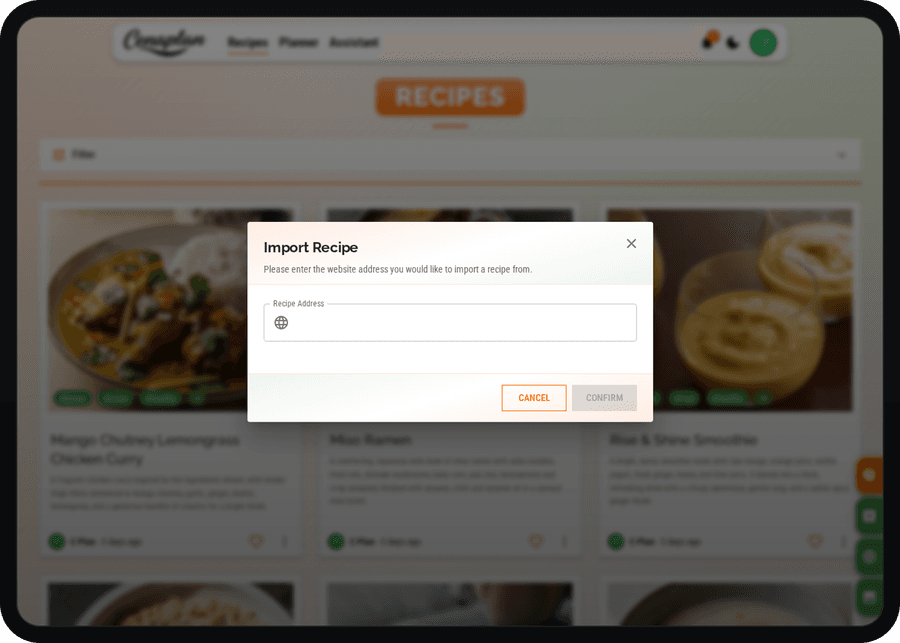
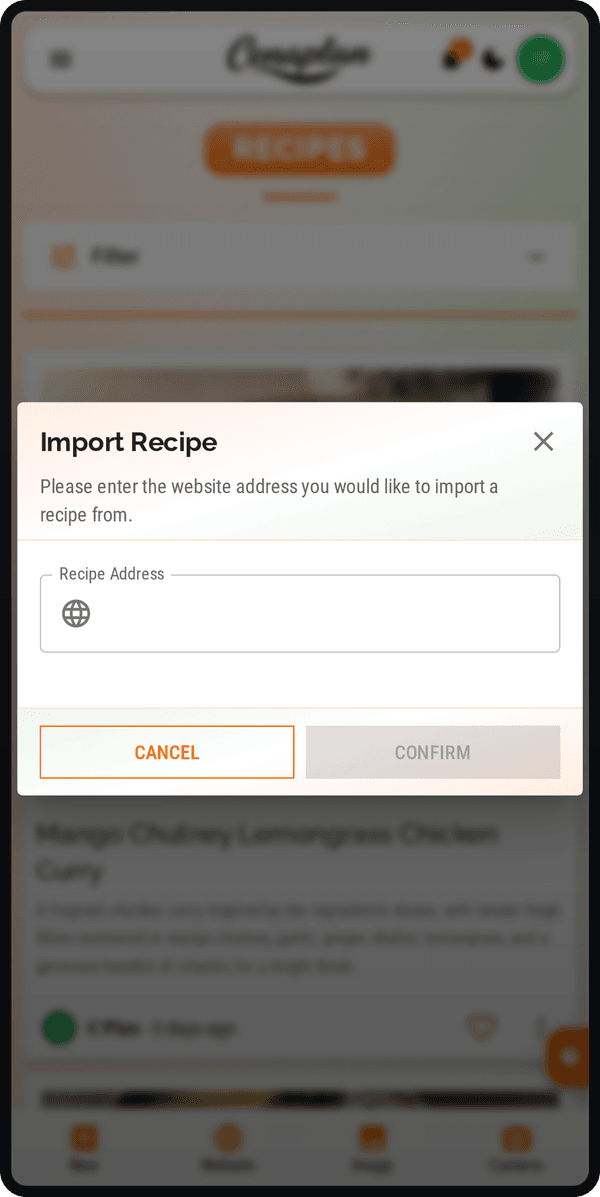
- Recipes imported from website links.
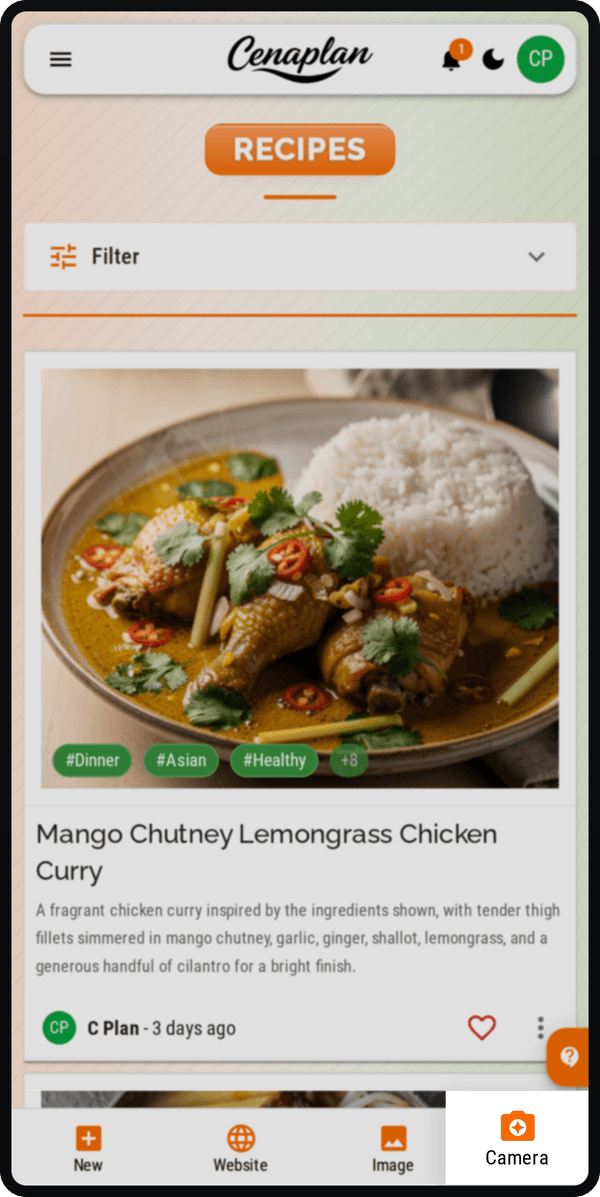
- Recipes captured from a phone camera or uploaded image.
- Recipes copied from screenshots or old notes.
- Recipes created or edited manually.
- Recipes you want to keep as favourites.
Once those recipes are in one place, they can be searched, filtered, edited, and reused in weekly planning.
Clean up recipes just enough
Digital organisation does not need to become admin work. The goal is not to create perfect recipe records. The goal is to create recipes that are easy to cook from and easy to plan with.
After importing a recipe, check the important fields:
- Is the title clear?
- Are the ingredients split into readable lines?
- Are quantities and units sensible?
- Are the steps in the right order?
- Is the serving count useful for your household?
- Are any notes or source links worth keeping?
Cenaplan supports editing saved recipes, including ingredients, servings, instructions, tags, and recipe images. That matters because imported recipes are rarely perfect on the first pass. A recipe from a website might need trimming. A photographed recipe might need a quick correction. A family recipe might need the version you actually cook, not the exact version written down years ago.
Treat the first save as capture. Treat the first cook as refinement.
Use tags that match cooking decisions
Tags are only useful if they match the decisions you make when choosing food.
Avoid building a tag system that is too clever. Most households need practical groups:
- Meal type: breakfast, lunch, dinner, snack.
- Time: quick, weekend, batch cook.
- People: family friendly, guests, kids, solo lunch.
- Food style: vegetarian, chicken, pasta, soup, tray bake.
- Situation: freezer friendly, leftovers, low effort, high protein.
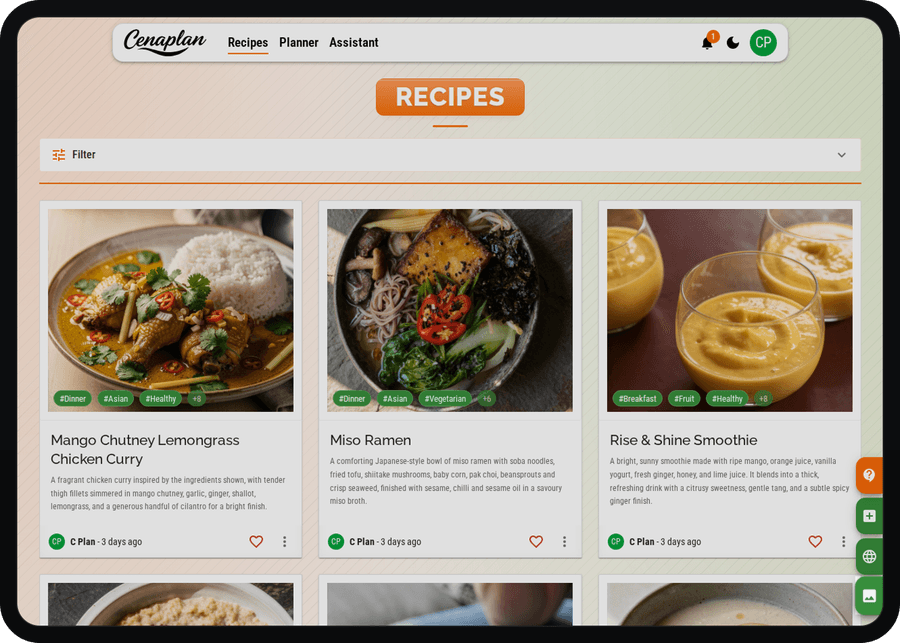
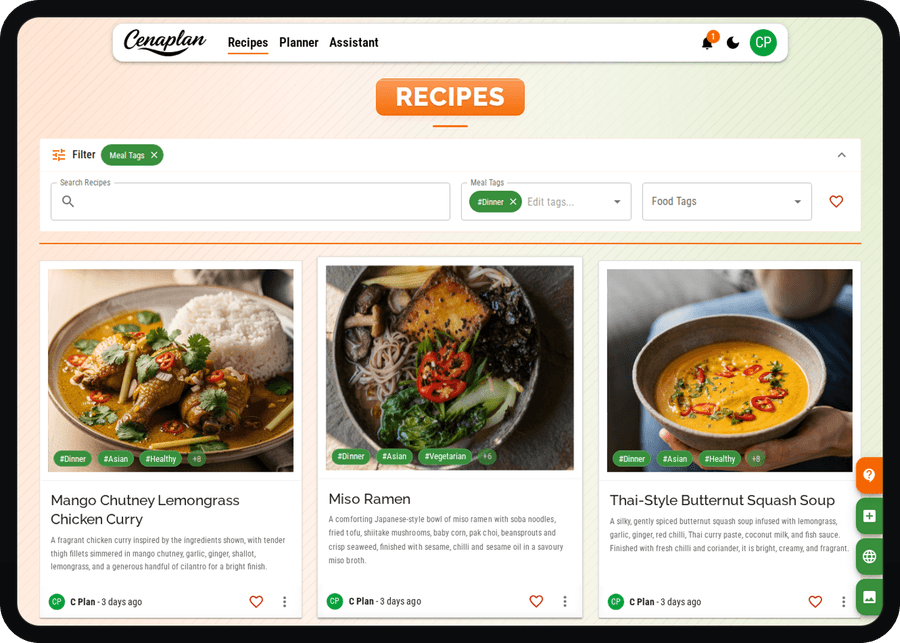
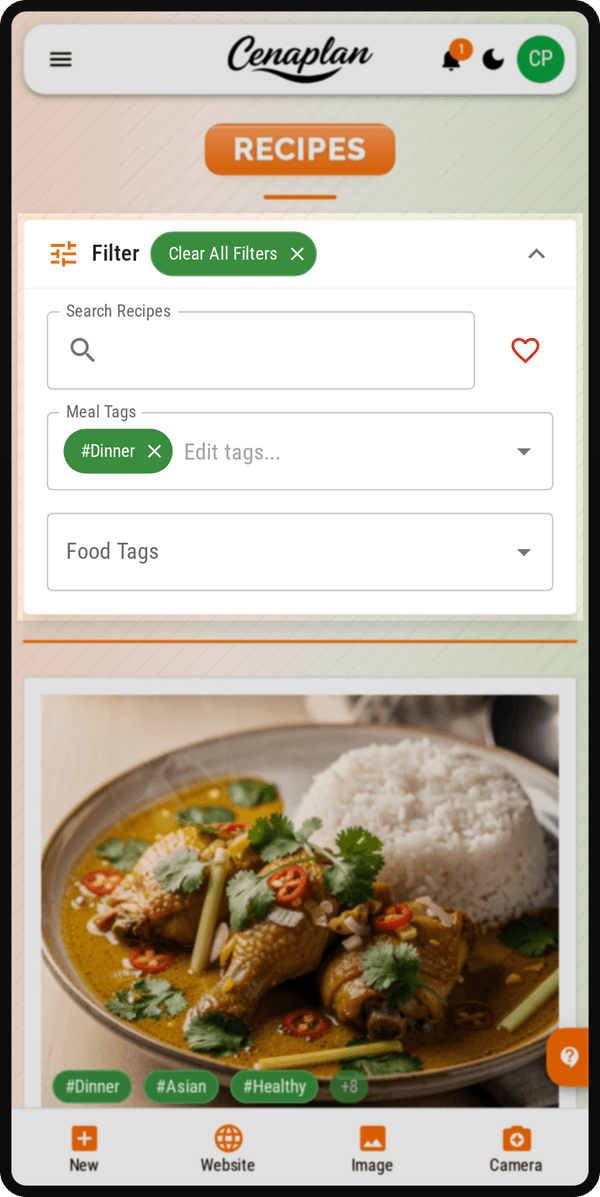
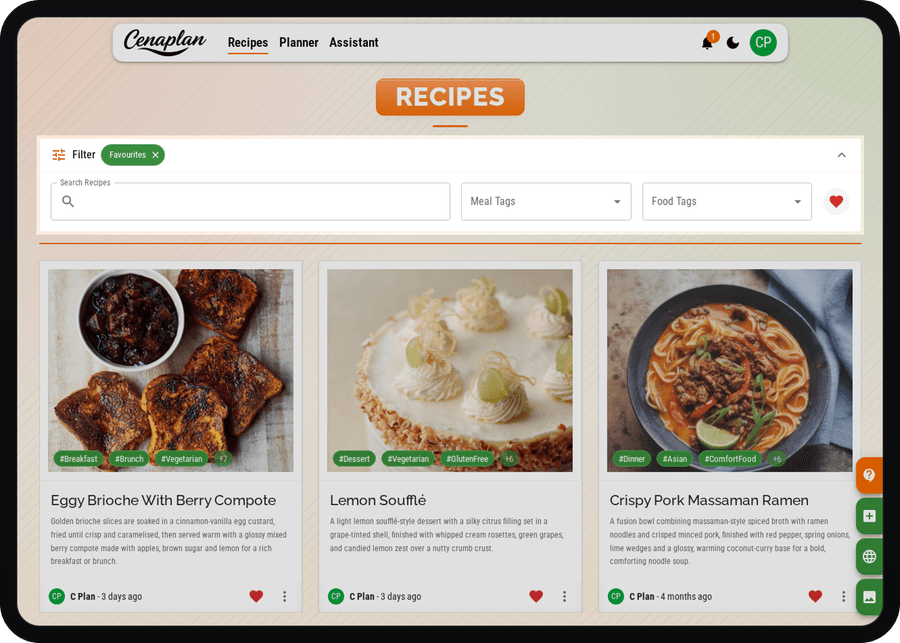
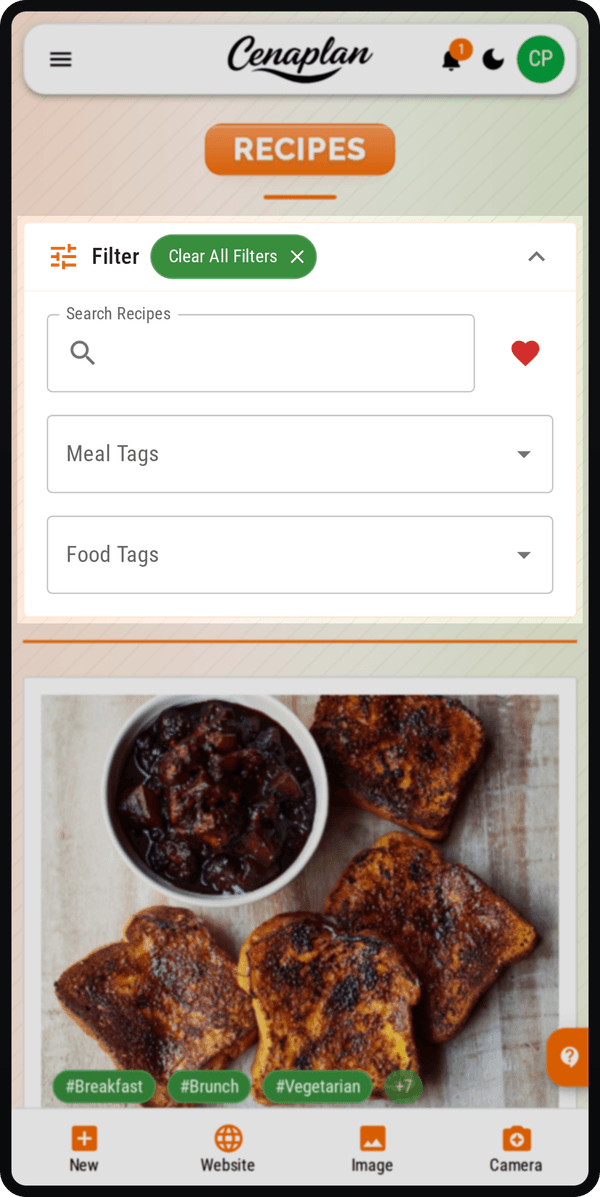
Cenaplan already surfaces meal and food-style filters in the recipe workflow, and recipe cards can show useful tags at a glance. The point is to make selection faster. When it is Tuesday evening and you search for chicken, dinner, or quick, the binder should narrow the decision, not create another chore.
Favourite the recipes you actually repeat
Every recipe library becomes noisy over time. Favourites help separate "interesting idea" from "reliable dinner".
Use favourites for recipes you would happily cook again. That gives you a fast shortlist for busy weeks, family defaults, and meals that need less decision-making. In Cenaplan, favourite filtering is part of the recipe binder workflow, so you can quickly return to trusted recipes instead of scrolling through everything you have ever saved.
This is especially useful if two people manage the same food routine. One person might save ideas; another might be doing the actual planning. Favourites make the dependable recipes easier to spot.
Connect the binder to the weekly plan
Recipe storage becomes more valuable when it feeds the weekly plan.
If your recipe organiser is separate from your meal planner, you still have to copy decisions from one place to another. That is where planning friction creeps back in. A better workflow is:
- Save recipes into the binder.
- Search or filter when planning.
- Add selected recipes to breakfast, lunch, or dinner slots.
- Let the planner build the ingredient list from those choices.
- Adjust the list before shopping.
Cenaplan supports adding saved recipes to plans and keeping planner ingredients attached to the selected meals. That makes the binder a working part of the food routine rather than a passive archive.
Capture
Bring recipes in.Find
Filter the binder.Plan
Choose the saved recipe.Shop
Use the ingredients.Capture
Find
Plan
Shop
Keep a small weekly rhythm
The best digital system is the one you keep using. A weekly rhythm helps:
- Save new recipes during the week without overthinking them.
- Favourite recipes that worked well.
- Use filters to pick meals for the next plan.
- Remove or ignore recipes that no longer fit how you cook.
You do not need a huge recipe library before this becomes useful. Even 20 well-organised recipes can make weekly planning easier than hundreds of unsearchable screenshots.
Where Cenaplan fits
Cenaplan is designed for people who want the binder and the planning workflow together. The digital recipe binder helps you capture and find recipes. The planner helps you place those recipes into a real week. The shopping list brings together the ingredients from the meals you choose.
That is the difference between saving recipes and actually using them.
If your recipes are currently spread across camera roll, bookmarks, notes, and memory, start with the first step: bring the recipes you actually cook into one digital binder, then let the weekly plan grow from there.
Frequently Asked Questions
What is the best way to organise recipes digitally?
The best approach is to keep recipes in one searchable place, tag them by meal type or use case, save favourites, and connect them to meal planning and shopping-list workflows.
Is a digital recipe binder better than a screenshots folder?
A screenshots folder is quick to save into, but hard to search and plan from. A digital recipe binder lets you structure, tag, edit, and reuse recipes.
Can Cenaplan import recipes from photos and websites?
Yes. Cenaplan supports recipe capture from images, camera photos, and website links, with editing after import.
Can organised recipes become a meal plan?
Yes. Cenaplan lets you add saved recipes to a weekly planner so your recipe library, meal plan, and shopping list stay connected.